Microsoft 365 Configuration Protection
Microsoft 365 configuration backup, compare and restore
Your Microsoft 365 configuration, saved and restorable. Compare first, then restore.
GlacierPoint Snapshot backs up the supported configuration of your tenant, 484 setting types across 9 admin centers, and restores the settings you pick, automatically or by hand. The coverage page lists what is covered and how each type is restored.
You need a Windows computer and a Microsoft 365 administrator account. Details below.
We hold no credential for your tenant
Mail, files and chats are never read
Nothing changes until you confirm
What changed over the weekend
Example53 settings are not the way you left them.
contoso.onmicrosoft.com · the backup of Fri, Oct 9, 6:45 PM against Mon, Oct 12, 7:10 AM: 3 added, 41 changed, 9 removed
-
Changed
Entra · Conditional Access
Ticked: Require MFA for administrators
State On to Report-only
-
Removed
Exchange · Mail flow rules
Ticked: Block automatic forwarding outside
Only in the Friday backup
-
Changed
Defender · Anti-phishing
Not ticked: Office365 AntiPhish Default
Spoof intelligence On to Off
Nothing is written until you confirm.
What you need
- A Windows computerWindows 10 or Windows 11, 64-bit, for the app. The app is a single program.Install and connect
- A Microsoft 365 administrator accountA backup asks for read permissions only. The one-time setup of your organization's own registration needs a Cloud Application Administrator, an Application Administrator or a Global Administrator.Every permission, by name
- Microsoft's PowerShell modulesFor Exchange, Defender, Purview and Teams settings. The app shows a card for each module and helps you install a missing one.What you need, in the guide
- A computer that is on for scheduled backupsScheduled backups run as a Windows task on a computer of yours at the scheduled time. Windows runs a missed one when the computer is back on.Scheduled backups
484
types of settings backed up and compared, from Conditional Access to Teams meeting policies
9
Microsoft admin centers: Entra, Intune, Exchange, Defender, Purview, SharePoint, Teams, Power Platform and Microsoft 365
386
of 484 setting types restored automatically; every other type is restored by hand with a walk-through or a restore script
AES-256
every backup is encrypted on your computer before it is stored, in our portal or in your own vault
The problem
Microsoft 365 has no undo.
The admin centers save a change the moment you click, and keep no earlier version of it. When a setting goes wrong, you rebuild it from memory.
- A wrong clickA Conditional Access policy switched on for everyone. A mail flow rule that quietly drops mail. The old values are gone the moment you press Save.
- A change nobody remembersThe audit log may tell you that someone changed a policy. It does not give you the policy as it was before.
- Settings spread over nine portalsSeveral people change settings in several admin centers. Nobody can say how the tenant differs from last month.
- Days of rebuildingAfter a bad change or a compromised admin account, putting hundreds of settings back by hand takes days, and the notes are never complete.
How it works
Back up, compare, restore, check.
A Windows app does the work with your own sign-in. The portal keeps the history and shows it to your team.
Back up
Pick the admin centers, sign in with your admin account, and the app reads every supported setting type. Read-only: nothing in the tenant changes. Schedule it to run every day on your own computer.
Compare
Any two backups, or a backup against the tenant as it is right now. Every added, changed and removed item, down to the single setting that differs.
Restore
Tick what you want back. The app shows a preview of every change, and writes nothing until you confirm. Recreated risky items come back switched off by default; settings updated in place take effect at once.
Check
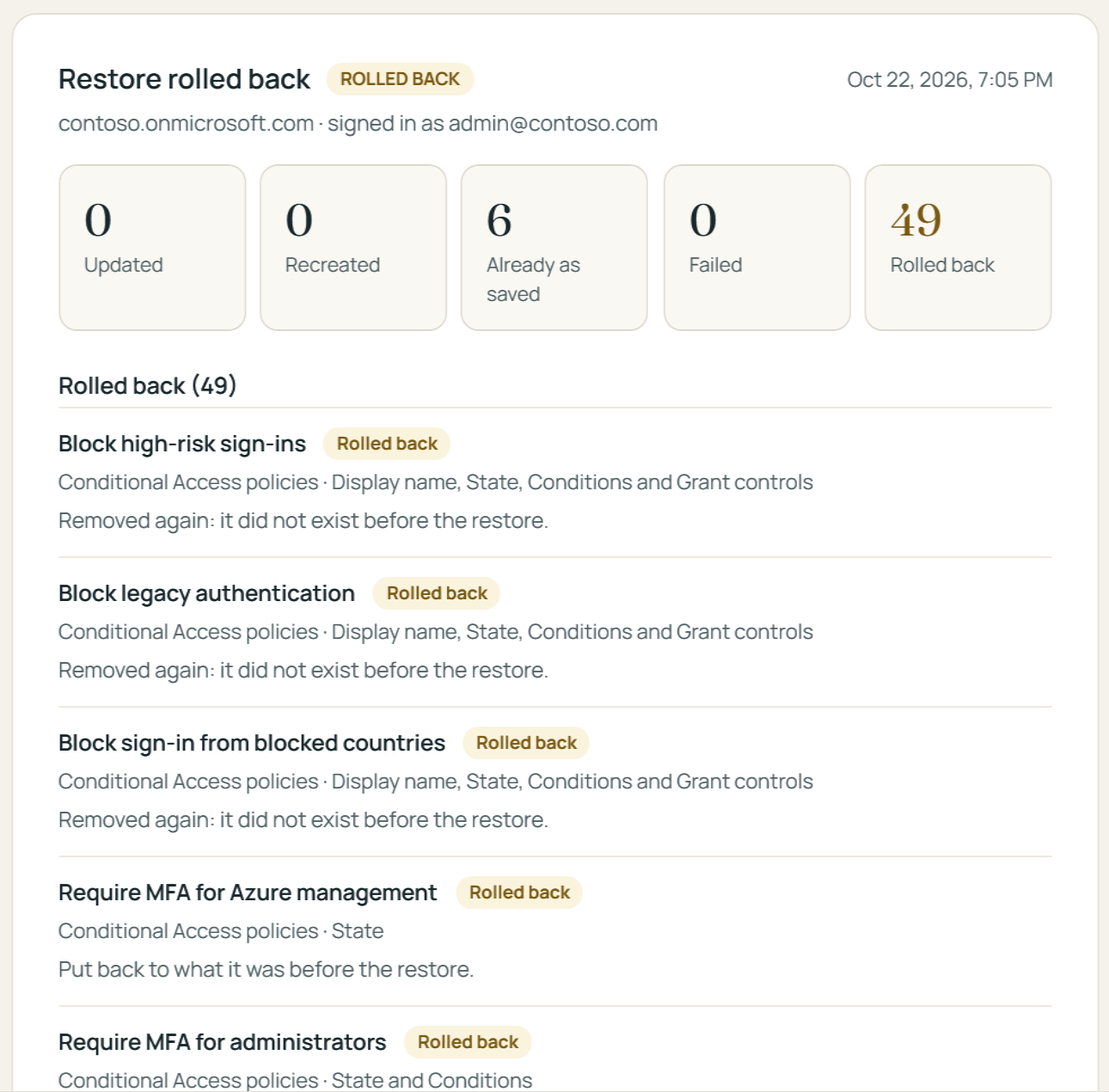
Each item reports what happened and goes into a journal on your computer. From that journal the app offers a rollback for every change it made, and reports any item Microsoft refuses. Anything that must be done by hand gets a walk-through.
Restore with a preview
See every change before anything is written.
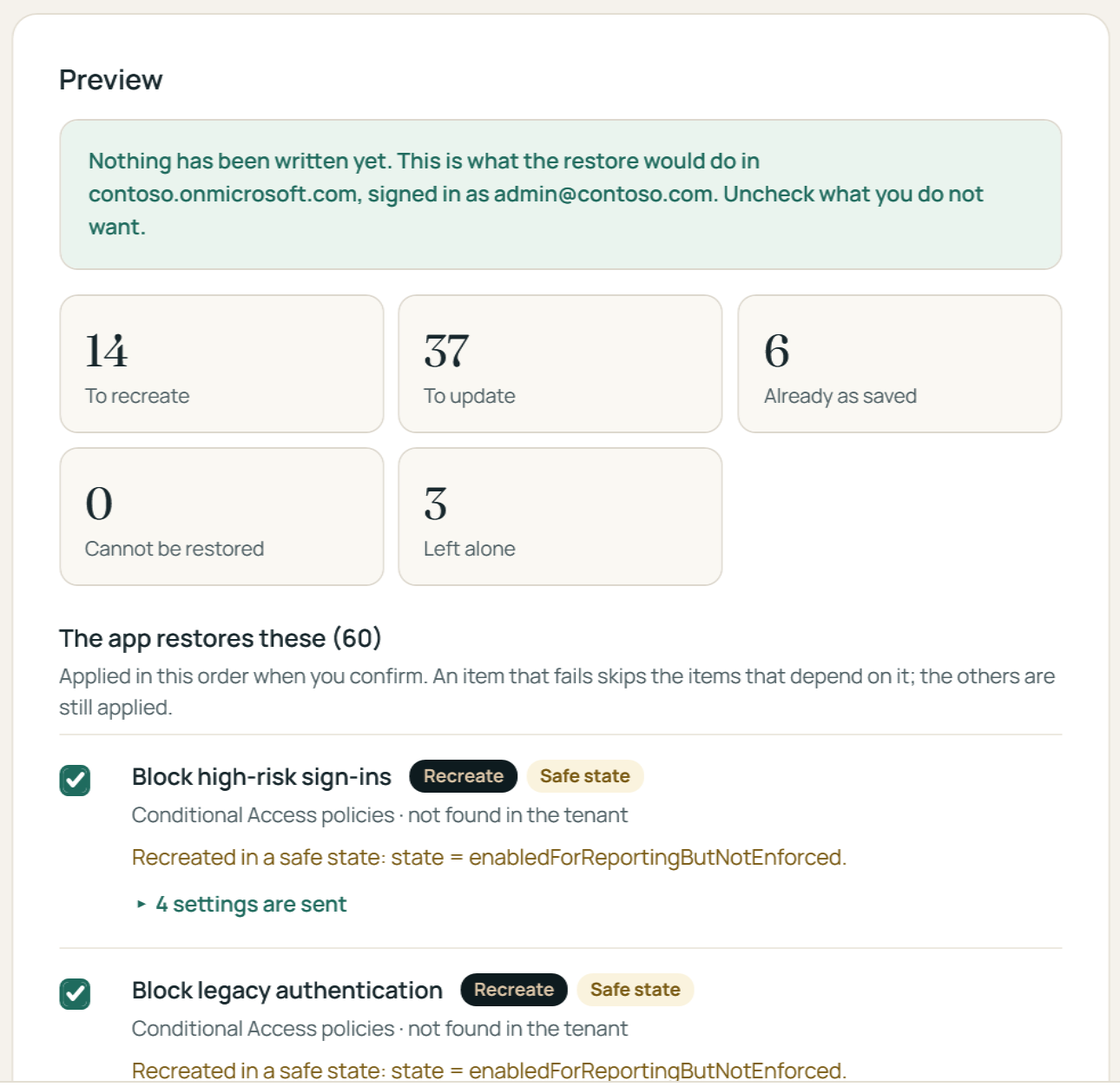
The preview reads the tenant as it is and lists what the restore would recreate, update or leave alone. Uncheck what you do not want, then apply. A restore never deletes anything.
1 · Preview
Nothing has been written yet
- 14to recreate
- 37to update
- 6already as saved
2 · Setting by setting
Exactly what will change
Require MFA for administrators
Conditional Access policy| Setting | In the tenant now | After the restore |
|---|---|---|
| State | Report-only | On |
| Excluded users | 2 accounts | 1 break-glass account |
The Apply button stays off until you confirm that you have reviewed the changes.
3 · Recorded and reversible
Every change goes into a journal
- Each item reports what happened
- Journal kept on your computer
- One rollback puts back what the restore changed
Coverage
484 setting types across 9 admin centers.
Every paid plan backs up every supported setting type; the free Preview backs up a sample of 10. 386 of 484 are restored automatically today; the rest come with a guided restore, and the automatic list grows with each release.
Microsoft Intune admin center
Exchange admin center
Microsoft Defender portal
Microsoft Purview portal
SharePoint admin center
Teams admin center
Microsoft 365 admin center
Power Platform admin center
Security
Your tenant. Your sign-in. Your computer.
A backup tool with standing access to every tenant would be the best target an attacker could find. So we built one that has none.
- The app registration is yours. It is created in your tenant, you see every line before it is written, and you can remove it at any time.
- No vendor access. We hold no password, token, secret or certificate for any tenant. The app on your computer does the work, signed in as you.
- Scheduled backups run on your computer, with a certificate whose private key never leaves it.
- Encrypted before it leaves your computer, and at rest. The portal opens a hosted backup only while it works on it, to show, compare or prepare a restore. Or the backup never leaves your computer: with a local vault, the portal sees codes and counts, never your settings.
With GlacierPoint Scan
Assess, capture, change, verify.
GlacierPoint Scan finds configuration weaknesses and sets priorities; GlacierPoint Snapshot preserves configuration history and recovers supported settings. Together: assess, capture the current configuration, make the approved changes, verify.
About GlacierPoint
GlacierPoint Technologies builds tools that keep Microsoft 365 and Windows environments known, safe and recoverable.
We started from a simple observation: most organizations don't know where their directory and tenant stand until something goes wrong, and the tools that could tell them are written for specialists. Our products put a clear answer in front of the people who have to act on it — a brief a leadership team can read, evidence an administrator can verify, and changes you approve one at a time.
Clarity
Plain-language reports and prices on the page. The same evidence sits behind every number.
Control
You authorize every collection and every change. Nothing runs in your environment without your sign-in, and every change our tools make records a way back.
Security first
Evidence is encrypted on your computer before it leaves. We never train AI on customer data, and support sees your data only when you grant it, for as long as you choose.
Pricing
Priced per tenant. Start free with a sample backup.
Paid plans differ by how often backups run, how long history is kept and how restores are done. Never by what is backed up.
Essentials $29 and Professional $79 per month, billed yearly in advance ($348 and $948 a year). See the plans
Also on the pricing page: the One-time plan for a project, and the MSP plan for managed service providers. Every workspace starts as the free Preview. Compare the plans in full, with answers about billing.
See your own tenant in it today.
The free Preview backs up a sample of 10 setting types of your tenant, up to 3 times. Browse the backups, compare them, and decide with your own settings in front of you.